OneNote Tips and Shortcuts for Client Notes
OneNote tips and shortcuts for client notes: find pages, capture decisions, and turn meeting notes into next steps with shortcuts for Windows, Mac, and web.
By The Professional Business Bundle by Cosmo Suite · Editorial policy
Published · 7 min read

If you use OneNote for client work, a few habits make the notebook easier to search and meeting notes easier to act on. OneNote is Microsoft’s digital note-taking app, organized around notebooks, sections, and pages (Microsoft Support). Use a small, consistent notebook structure, give each page a searchable title, and capture decisions with an owner and a date. Learn the shortcuts that match your version of OneNote, because Windows, Mac, and web keys are not identical.
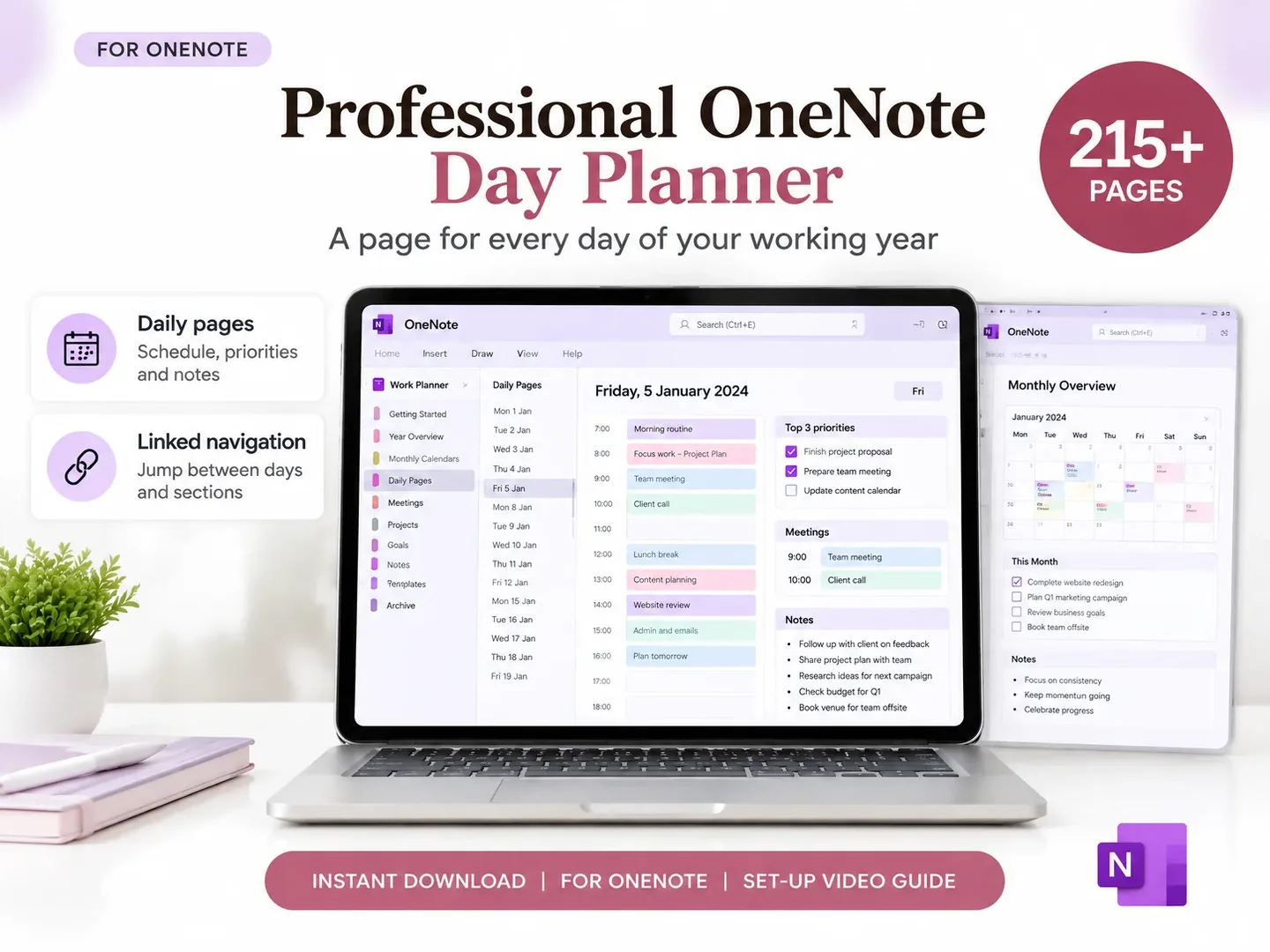
The Professional Business Bundle includes a Professional OneNote Day Planner with 215+ pages, alongside its Excel and Google Sheets files. You can also keep a separate notebook structure of your own. Here are practical OneNote tips and the shortcuts that save repeated navigation.
OneNote Tips and Shortcuts at a Glance
| Need | Windows desktop | Mac | Web |
|---|---|---|---|
| Search notes | Ctrl+E searches open notebooks | Command+Option+F searches open notebooks | Use the app's search and browser-aware navigation |
| Find text on the page | Ctrl+F | Command+F | Ctrl+F may search the browser page |
| Add a page | Ctrl+N | Command+N | Use the page command in the app |
| Add a link | Ctrl+K | Command+K | Ctrl+K |
| Create a quick note | Ctrl+Shift+M | Check the app version | Use the available page or note command |
Microsoft's shortcut list covers OneNote for Microsoft 365, Mac, and web, but shortcuts can vary between versions, keyboard layouts, and browsers. Treat this table as a starting point, then confirm the exact keys in Microsoft's current OneNote shortcut reference. The first habit to adopt is not a shortcut: keep the same naming pattern across client pages so search has something useful to find.
Build a notebook structure you can keep using
Choose a structure that matches how you look for work. OneNote uses notebooks, sections, and pages, and Microsoft notes that you can rename or move these as your filing needs change (Microsoft's guide to organizing notes). A solo consultant might start with one work notebook, then create sections for active clients, internal operations, and reference material. Each client section can hold a project page, meeting pages, and reports. A business with strict separation requirements may need separate notebooks instead. Pick the arrangement that fits the information and access rules you follow.
Do not create a section for every small topic. If a page is hard to place, a broad section and a clear title are often enough. Too many levels turn filing into another task. Keep the structure stable long enough to learn where you naturally look first.
A useful page title says what the note contains. “Acme | Website refresh | Kickoff | 26 Oct” gives more search context than “Meeting notes.” If you have recurring client meetings, a consistent title order makes a list easier to scan. Microsoft says a page title also appears on its tab, and the first line can become the title when the title area is blank. Include only information you are allowed to store in that notebook, and keep passwords or access credentials in a secure tool intended for them. See its steps to create a notebook when you need a separate work area.
For repeatable pages, decide what each one is for. A meeting page can hold agenda, decisions, and actions. A project page can link to the latest meeting and the source documents. A report page can keep the narrative that explains a set of project numbers. That separation makes it easier to find the note without copying the same text into several places.
Use shortcuts for the actions you repeat
Start with a few actions you perform every day instead of memorizing a long list. Microsoft documents shortcuts by version. For Windows desktop, Ctrl+E searches open notebooks, Ctrl+N adds a page, Ctrl+K inserts a link, and Ctrl+Shift+M creates a Quick Note. The shortcut article notes that its keys use a US keyboard layout, so another layout may behave differently.
On Mac, Command+F finds text on the current page, while Command+Option+F searches open notebooks. Command+N creates a page and Command+K inserts a link. Some function key combinations can conflict with macOS settings or utilities. If a key does not work, use the menu command and verify your OneNote version before changing system settings.
In OneNote for the web, browser shortcuts can take precedence. Microsoft specifically notes that Ctrl+F6 is used to move in and out of commands, and that Ctrl+F can belong to the browser rather than OneNote. A shortcut that works in desktop may therefore do something else in a browser tab.
Learn one shortcut at a time. For a week, use the search shortcut whenever you need a note, then add the new-page shortcut. If the shortcut does not help in the version you use, stop and use the visible command. Skip any key combination your app or keyboard intercepts.
For navigation, open the notebook list before adding another layer to your filing system. Microsoft’s navigation guide explains how the app displays notebooks, sections, and page lists. If you have to click through several similarly named pages, rename them before creating more folders. Page titles appear in the navigation list, so a specific title can save a trip through the whole hierarchy.
A two-step retrieval test helps when you name a page: could you find it from the client name alone, and could you distinguish it from another note for that client? If either answer is no, add the project, meeting type, or date to the title. This is a simple naming rule, not a OneNote feature or a measured search result.
Turn meeting notes into clear next actions
A meeting page is useful when it separates what was said from what someone agreed to do. Add a short header with the client or project, meeting date, and people present. Then divide the note into agenda, decisions, open questions, and actions. That gives you a quick way to scan the page after the call.
Write decisions as statements, not as a transcript. “The first draft will cover the home page and services page” is easier to act on than a paragraph about the discussion. If the decision is still open, label it as a question and name who will provide the answer. Do not turn tentative ideas into confirmed scope.
For every action, record a verb, one owner, and a due date. “Send photos” is incomplete if no one knows who will send them or when. “Maya to send the approved product photos by 30 October” has an owner and date. This is a note-taking convention, not a feature OneNote enforces for you.
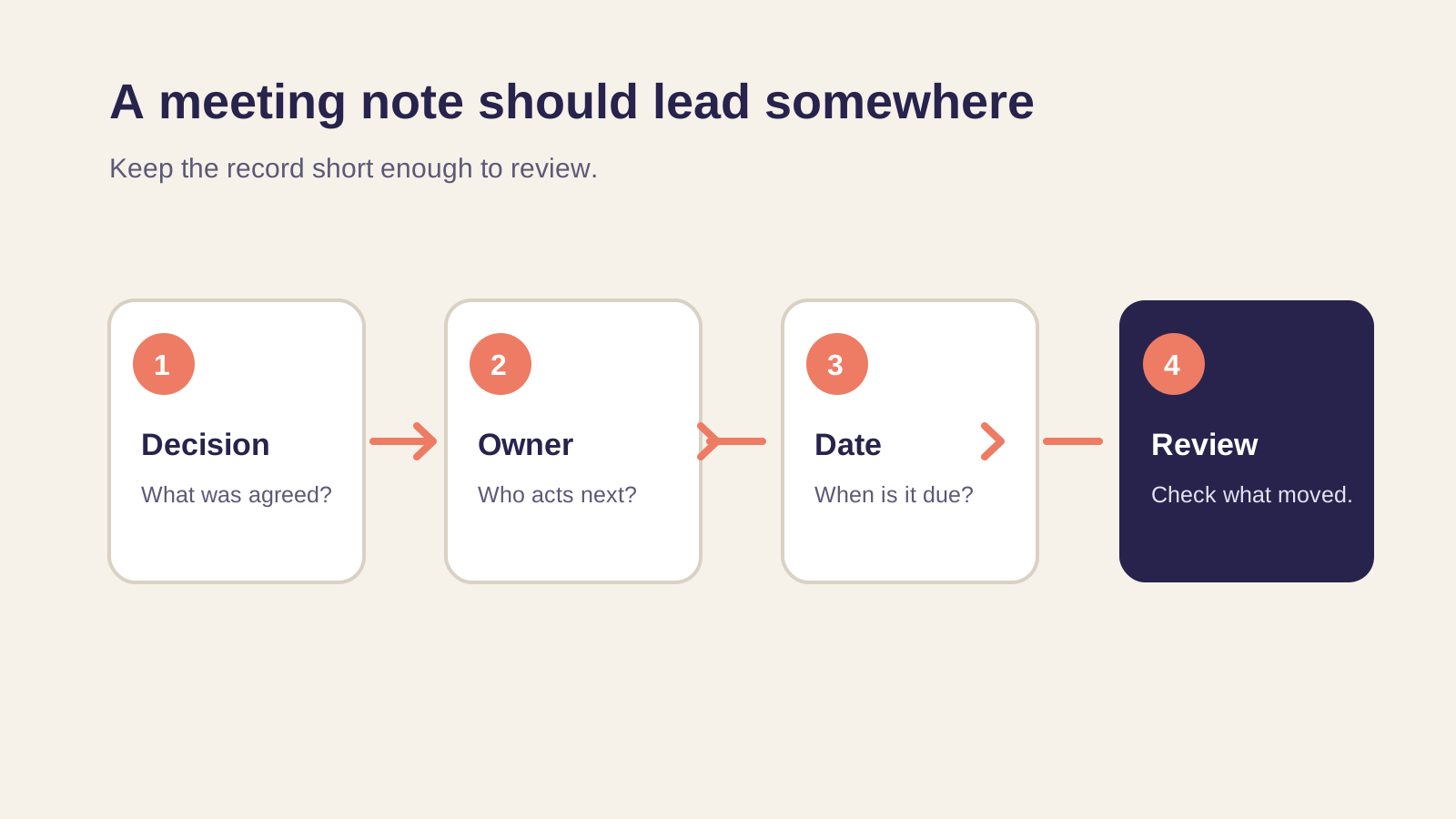
After the meeting, send a brief recap through the channel your client already uses. Link to or summarize the agreed decisions, confirm the next milestone, and call out missing information that affects the date. The project kickoff meeting guide has a fuller agenda for a new engagement. If this is the start of a new client relationship, the first-week client onboarding checklist covers the work around that meeting.
Keep client notes useful without making them a second system
OneNote is a flexible place for unstructured notes and reference pages. A spreadsheet or project tool may be better for work that needs a consistent view of owners, due dates, status, or budget across several projects. Pick one source for each kind of information. If an action is tracked in a project log, make the meeting page point to it rather than maintaining a second copy that can drift.
For example, imagine a consultant with four active retainers. Each client has a notebook section, but the weekly review happens in one project tracker. The consultant can search OneNote for the approval that changed a deliverable, then use the tracker to see which tasks remain open. This is an illustrative workflow, not a customer case study or a promise that OneNote automatically updates another file.
Use links between related pages where they help retrieval. A project overview can link to the latest meeting note, and a meeting note can link back to the overview. Keep the link descriptive, such as “October kickoff decisions,” so the destination is clear before you open it. If you reorganize a notebook, check that the links you depend on still point to the right pages.
If you manage several projects in files, the project manager template guide explains what a multi-project tracker needs to show. Avoid recording the same changing status in the notebook, a spreadsheet, and an app. Notes preserve context; the tracker answers what is open and who owns the next step.
When a notes app is not enough
Use dedicated project management software when several people need to update shared work, clients need a portal, or your process depends on automations and notifications. OneNote can hold useful context, but the notebook alone does not provide a single live task register or a client-facing project portal. Be clear about which part you expect it to handle.
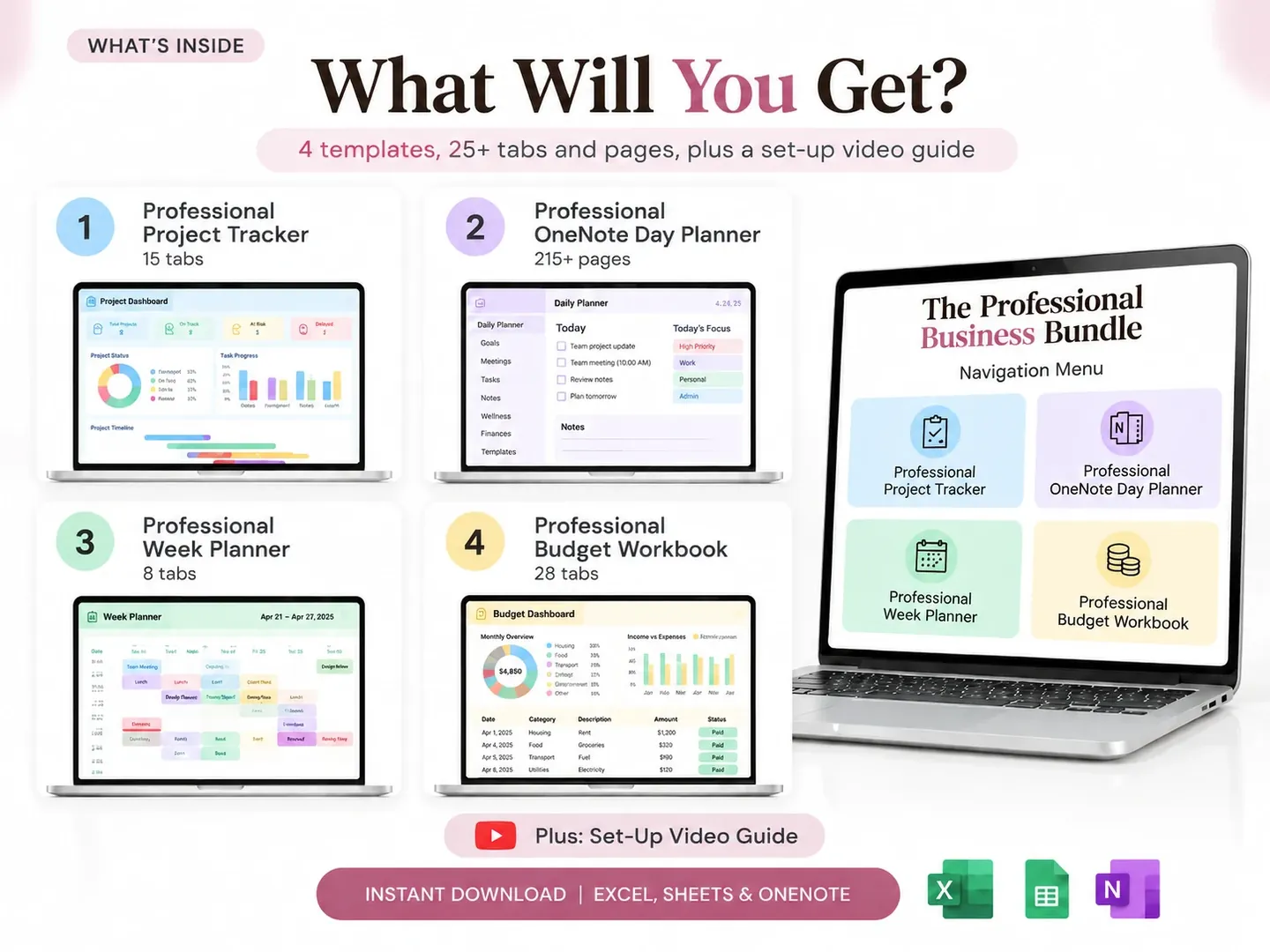
For a solo owner or a small team, a notebook plus a separate project tracker can be enough. The Professional Business Bundle pairs the Professional OneNote Day Planner with spreadsheets for project tracking and weekly planning. Its OneNote planner contains meeting-notes templates and client tracking pages. Check the contents list, then use the pieces that fit your work. A notebook template will not replace a shared app when you need team collaboration.
Why Trust This Article
The Cosmo Suite team makes the Professional Business Bundle, so we have an interest in the subject. The shortcut examples above are checked against Microsoft's official OneNote support article on 26 October 2026. Microsoft notes that shortcuts vary by app and keyboard layout. The workflow suggestions are general examples, not a report of tested client outcomes. Read our about page and editorial policy for more on how we work. Verify shortcuts in your own OneNote version before relying on them.
Frequently asked questions
What are the most useful OneNote shortcuts?
For Windows desktop, useful shortcuts include Ctrl+E to search open notebooks, Ctrl+N to add a page, Ctrl+K to insert a link, and Ctrl+Shift+M to create a Quick Note. On Mac, use Command+F to find text on a page and Command+N for a new page. Shortcuts differ by version, so check Microsoft's list for your app.
How do I organize OneNote for client work?
Use a notebook for a clear work area, sections for broad groups such as clients or internal operations, and pages for a specific project, meeting, or report. Keep page titles searchable and record the date, decision, owner, and next action in meeting notes. Choose a structure you can maintain.
Can I use OneNote for meeting minutes?
Yes. A meeting page can capture the date, attendees, agenda, decisions, open questions, owners, and due dates. OneNote stores the notes, but you still need to agree who owns each action and how the team will review it.
Do OneNote shortcuts work the same on Windows, Mac, and the web?
No. Some actions use different keys across OneNote desktop, Mac, and web. Microsoft's shortcut reference separates the versions. The keyboard layout and browser can also affect a shortcut, so verify it in the version you use.
How do I find notes quickly in OneNote?
Give pages specific titles, use a consistent client or project name, and search for a phrase you remember from the note. Windows desktop uses Ctrl+E to search open notebooks. On Mac, Command+Option+F searches across open notebooks.
Can OneNote replace project management software?
OneNote works well for notes, reference material, and meeting records. It does not by itself provide every team's shared task ownership, automation, reporting, or client portal needs. A small business can pair notes with a separate project tracker, or choose dedicated software when a team needs those functions.
